Updates to some Clinical components are deployed to your Clinical computer(s) in two stages;
Enhancements to MedicalDirector Automatic Update (previously known as Health Communication Network Automatic Update) allow you to schedule and run a ‘silent’ download/installation to your Server computer.
The Content Update utility (installed with MedicalDirector Maintenance 3.15.3 or higher) automatically updates specific content from your Server computer to your Workstation computer(s) running Clinical.
Updates to specific content applied to your server computer are detected and installed automatically by your workstation. Such content includes Product Information, Consumer Medicines Information, NPS Radar, Lab Tests (available to the Investigations Requests module), and ancillary files and documentation. A check for updates is made whenever you;
Log on to Clinical.
Open a patient's record.
Access Product Information, Consumer Medicines Information, or NPS Radar.
Access the Pathology, Cytology, or X-ray Request modules.
Furthermore, the Content Update utility allows you to manually check for updates (from your workstation computer), and initiate the update immediately, or reapply previously-installed updates. There are two versions of the Content Update utility; one installed on your Server, and one installed on your Workstations. Both are explained below.
Content Updates on the Server
Locate and double-click the MedicalDirector Maintenance icon  from your desktop. The MedicalDirector Maintenance window appears.
Select the Database Tasks > Clinical menu item.
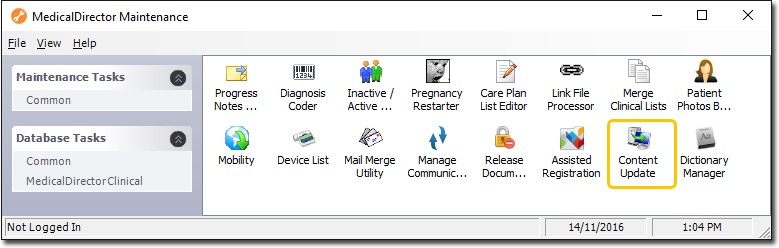
Double-click 
If this is the first time you have tried to run the Content Update utility during this session of working in MedicalDirector Maintenance, you will be prompted to select a Configuration, and enter your Username and Password.
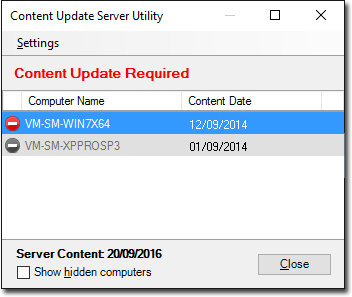
The Content Update Server Utility appears. This window displays computers on your network that either;
Require an update of Clinical content, as flagged with the  icon, or
Do not require an update of MedicalDirector Clinical content, as flagged with the  icon.
icon.

|
Settings menu > Disable Content Update |
This completely disables any content updates from being transferred to, or downloaded by, your workstation computers. If you were to access the Content Update utility from a workstation computer whilst this setting is enabled, the following window would indicate that updates have been disabled:
|
|
Settings menu > Disable Background Processing |
Clinical updates are downloaded from your Server computer to your Workstation whenever you do one of the following;
Logs on to Clinical. Opens a patient's record. Accesses Product Information, Consumer Medicines Information, or NPS Radar. Accesses the Pathology, Cytology, or X-ray Request modules.
Under normal circumstances, the process is as follows:
The user accesses Product Information (for example). MedicalDirector Clinical detects that an update for Product Information is available, and immediately downloads the update to your workstation and installs the update. If at this time other content updates are discovered, they are also transferred to your workstation and saved in a temporary folder for installing later (when you next access those particular components of Clinical). This process of downloading extra content updates to your workstation and saving them for later is referred to as 'background processing'. The Disable Background Processing option prevents these extra content updates from being transferred and stored on your workstation(s). Such updates will still be transferred and installed later, but only when the user accesses a relevant component in MedicalDirector Clinical. |
|
Show Hidden Computers check box |
You can hide a computer from the list within the Content Update Sever utility window by right-clicking the entry and selecting Hide Computer from the menu that appears. This check box displays hidden computers. Hidden computers are displayed in grey highlight, as shown in the following example.
To reveal a hidden computer, ensure you have ticked this check box, right-click the computer and select Show Computer from the menu that appears. |

Content Updates on the Workstation
Locate and double-click the MedicalDirector Maintenance icon from your desktop. The MedicalDirector Maintenance window appears.
Select the Database Tasks > Clinical menu item.
Double-click the Content Update icon.
If this is the first time you have tried to run the Content Update Utility during this session of working in MedicalDirector Maintenance, you will be prompted to select a Configuration, and enter your Username and Password.
The Content Update Utility appears. If updates are available, you will be notified on this window, as shown in the example below.
Modules flagged with are up-to-date.
Modules flagged with require updating.

Click  to initiate the update to your workstation computer. The update will commence.

After the updates have finished installing, the Content Update utility window refreshes. Note that from this widow you can now reapply content updates if required, by clicking  This may be necessary if you accidently delete the related content from your workstation computer, for example.

Click  to close the utility.