To view or edit your Clinical/Pracsoft Licence Details:
Locate and double-click the MedicalDirector Maintenance icon  on your desktop. The MedicalDirector Maintenance window appears.
Select the Database Tasks > Common menu item.

Double-click 
(Optional) If this is the first time you have tried to access the Licence Details during this session of working in MedicalDirector Maintenance, you will be prompted to select a Configuration, and enter your Username and Password.
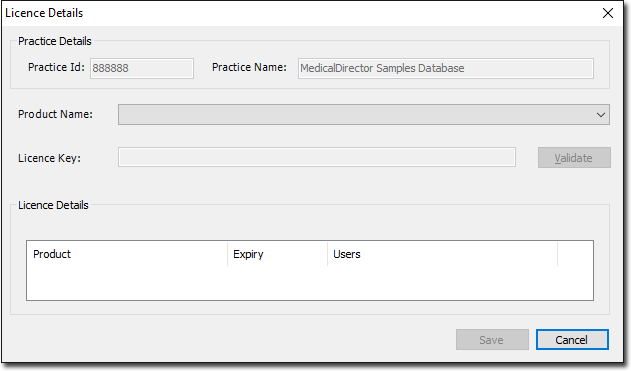
The Licence Details window appears. Initially, this window is displayed empty, as shown below.
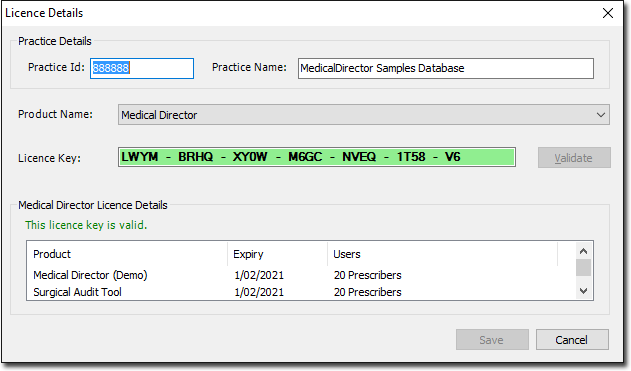
From the Product Name drop-down list, select the MedicalDirector product you wish to view licensing details for.
To edit your Licence details:
Enter the Practice ID, the Practice Name and the Licence Key.
Click  to check the Licence Product, the Expiry date of the product and the User details.
Select the Product to enable you to continue.
Click  to save these details.
Repeat Step 5 for each MedicalDirector product you wish to register.