If you have a Medicare card swiper connected to your computer, you can use it to scan a patient's Medicare Card, inserting their Medicare Number automatically into Pracsoft, saving you having to manually enter it. You can also swipe the card to quickly search for patients associated with it. Before You Begin It is important to note that a Medicare card swiper is a different device to your EFTPOS machine. Although both are designed to read the magnetic strip on a card, an EFTPOS machine cannot be used to read Medicare Card data into Pracsoft. There are numerous Medicare card swipers on the market. Consult your Systems Administrator for advice regarding a model suitable for your Practice's needs. Please consult your Systems Administrator if you require assistance with the installation and configuration of a dedicated Medicare card swiper - you need to ensure that it is functional outside of MedicalDirector Pracsoft. This may involve downloading and installing the correct drivers for your Operating System, and using the reader's supplied diagnostic/configuration utility to verify its functionality. |
|
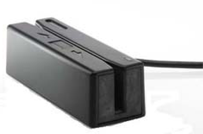
Use a Medicare Card Swiper in Pracsoft
When
searching for patients.
Click within the Patient / Medicare / Chart Number field and swipe
to return all the patients associated with the card number.

When
adding a new patient or
editing
an existing patient.
Click within the Medicare Number text field and swipe to automatically
record the card number and expiry date.
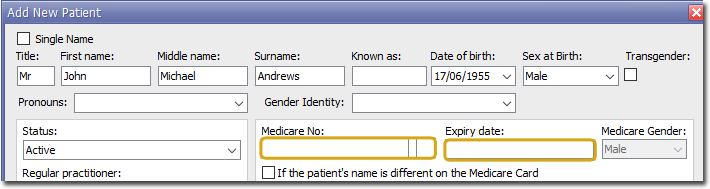
When
recording a visit.
Ensure the Perform OPV Check
option is ticked in Online
Claiming settings. Ensure the When
Recording a Visit option is ticked in Patient
Settings. Then, when recording a visit for a patient (who
does not already have their Medicare Number recorded),
upon finishing the visit you will be prompted to enter the patient's
Medicare card details. Click within the Medicare No text field
provided, and swipe to automatically record the card number.

When
adding a patient
to the Waiting Room.
Ensure the Perform OPV Check
option is ticked in Online
Claiming settings. Ensure the When
Added to Waiting Room option is ticked in Patient
Settings. Then, when adding a patient (who does not
already have their Medicare Number recorded) to the Waiting
Room you will be prompted to enter the patient's Medicare
card details. Click within the Medicare No text field provided,
and swipe to automatically record the card number.
When
searching for appointments.
In the Find Appointment window, ensure the Linked
Patient Appointment option is selected, click within the
Search For text box, swipe
the card, and then click  If a patient
associated with that card number has an scheduled appointment,
they will be listed in the search results.
If a patient
associated with that card number has an scheduled appointment,
they will be listed in the search results.
